When you are ready to begin working in Web1040 Pro, follow these steps:
- Open your Internet browser and navigate to www.myweb1040pro.com
- Click Login in the top right corner
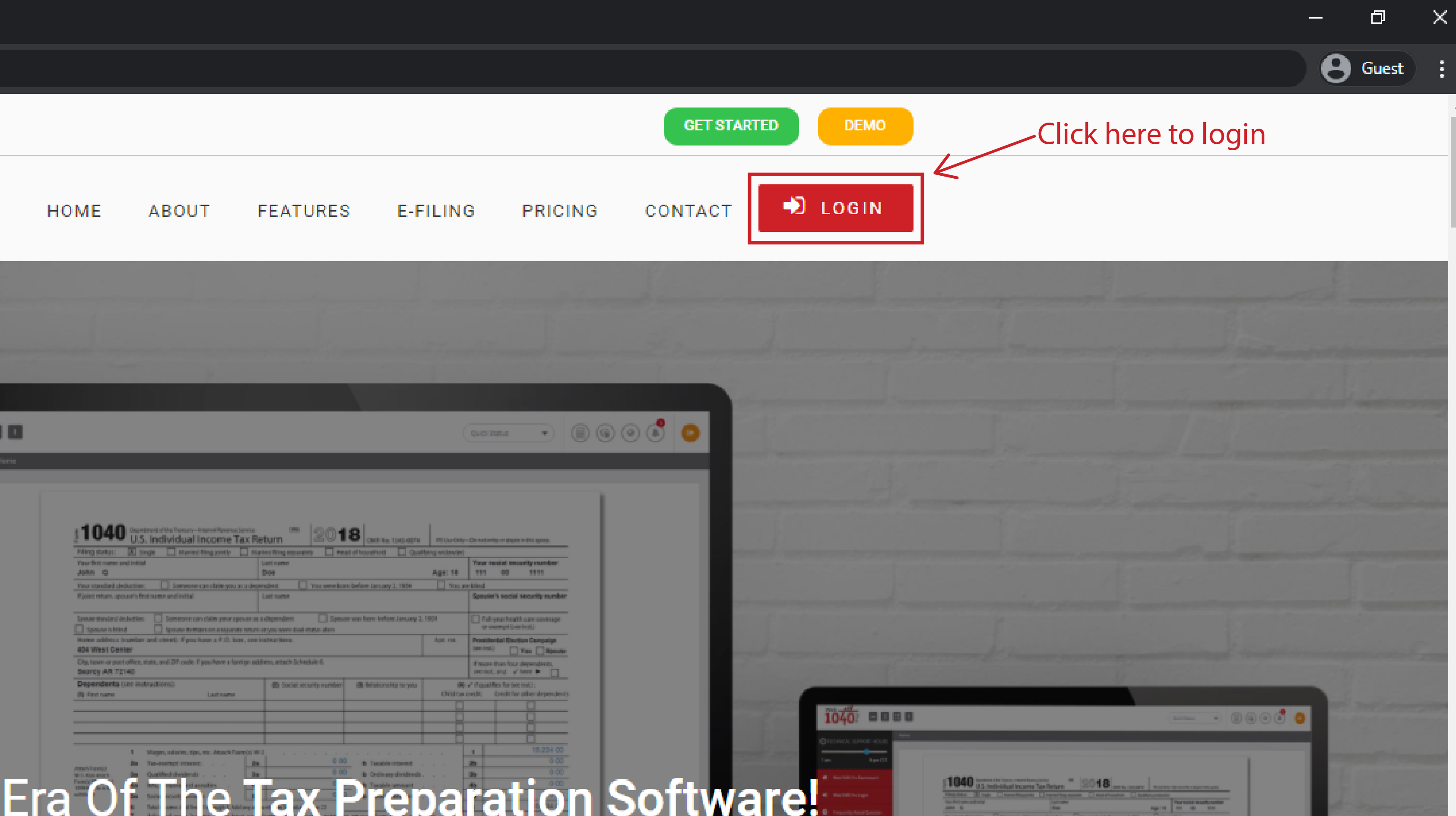
- Enter your username and password. Your username will be your Client User ID. If this is your first time logging in, you have been provided a default password in the software release email. You will be prompted to choose a new password after first-time login. Passwords are case-sensitive.
- Click Login
What if I forgot my Username?
- To retrieve your username, click Forgot Username on the Login Page. Web1040 Pro displays the Forgot Username page.
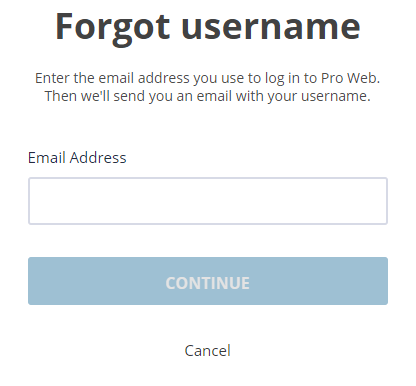
- Type the email address you used to setup your account. Click Continue.
- A message will confirm the e-mail has been transmitted. You will receive an email from TaxStatusNow.com, listing your username.
What if I forgot my Password?
- To reset your password, click Forgot Password on the Login Page. Web1040 Pro displays the Reset Password page.
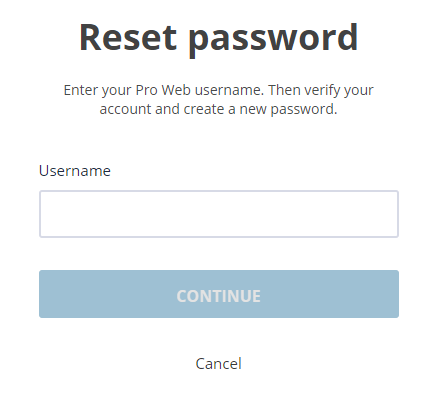
- Enter your username and click Continue.
- Web1040Pro displays the Account Verification page.
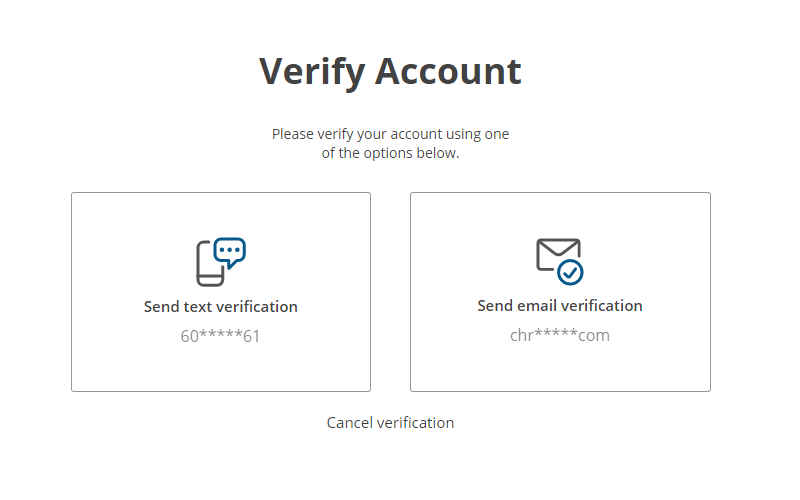
- To reset your password, a verification code is neccessary.
- You can choose to receive the code through e-mail or text message. This information was entered in the Configuration Menu under Preparer Setup.
NOTE: Verification codes are valid for 24 hours. If you send an additional verification code, the previous code will be void. If you exit the Account Verification page after sending a code, the code will be void. Do not exit the page to retrieve the code. Instead, open a new tab or window to access your email.
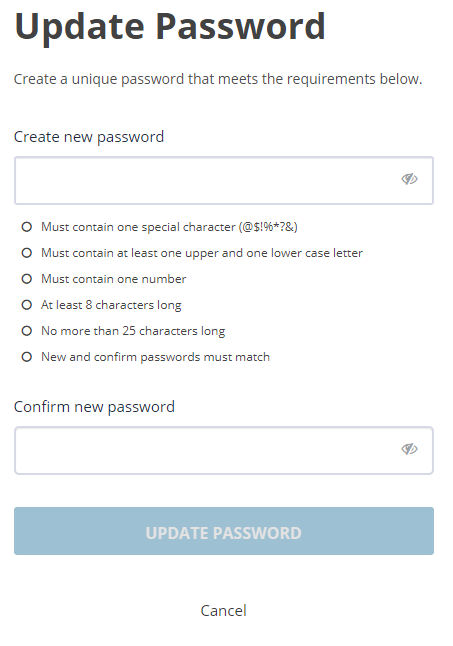
- If you correctly entered the security code, you are given the option to create a new password.
- Type the password again for verification, then click Submit. You will be re-directed to the software login screen. Enter your new credentials and click Login to access your account.
Multi Factor Authentication
Multi Factor Authentication (MFA) was implemented for all Web1040 Pro cloud-based applications beginning September 7, 2017. MFA is a security system that uses multiple forms of identification to control program access. Accessing online Web1040 Pro accounts will require two forms of authentication and must be completed for all devices and Internet browsers. One factor of authentication is the user’s password; the other, a six-digit code sent to the user’s cell phone or e-mail address when the user attempts to login. If entered correctly, the code will be verified, and the user will be granted access to the software.
The authentication process must be repeated periodically; time intervals are setup under Configuration. The MFA verification process must be completed per device and per Internet browser.
Authenticating on a New Computer
- When logging on from a device or browser not previously used, Web1040 Pro displays the Account Verification page:
- Web1040 Pro verifies your identity to ensure all program access is legitimate. To verify your account, use the following steps:
- Select preferred delivery option. You can receive your code through email or text.
- Check your email or text messages to find the code.
- Type the code in the “Verification Code” box and click Verify.
- Web1040 Pro verifies the code and displays the Welcome page.
NOTE: If you have not used a device for an extended amount of time, you will be required to re-authenticate the device.